


We are proud to introduce UWallet — the first and only wallet on the UChain network. It’s a modern, convenient, and secure cryptocurrency wallet that allows you to store multiple digital assets in one place and manage them effortlessly.
The key advantage of UWallet is the ability to create an unlimited number of wallets within a single app. There’s no need to install dozens of different wallets — all major cryptocurrencies are available in UWallet.
The developers have also placed special emphasis on security and user privacy — private keys are encrypted and stored only on your smartphone.
In this article, we’ll walk you through the interface and functionality of UWallet.
The main menu is located at the bottom of the screen and includes three sections (from left to right):
- Wallet
- QR Code
- Settings
Let’s take a closer look at each section of the menu.
Overview of the Main Screen
On the main screen, you’ll find the wallet widget displaying your total balance in USD. Two types of balances are available: Available and Frozen. Below the widget, you can see cards of the cryptocurrencies currently stored in your wallet, each showing its balance:
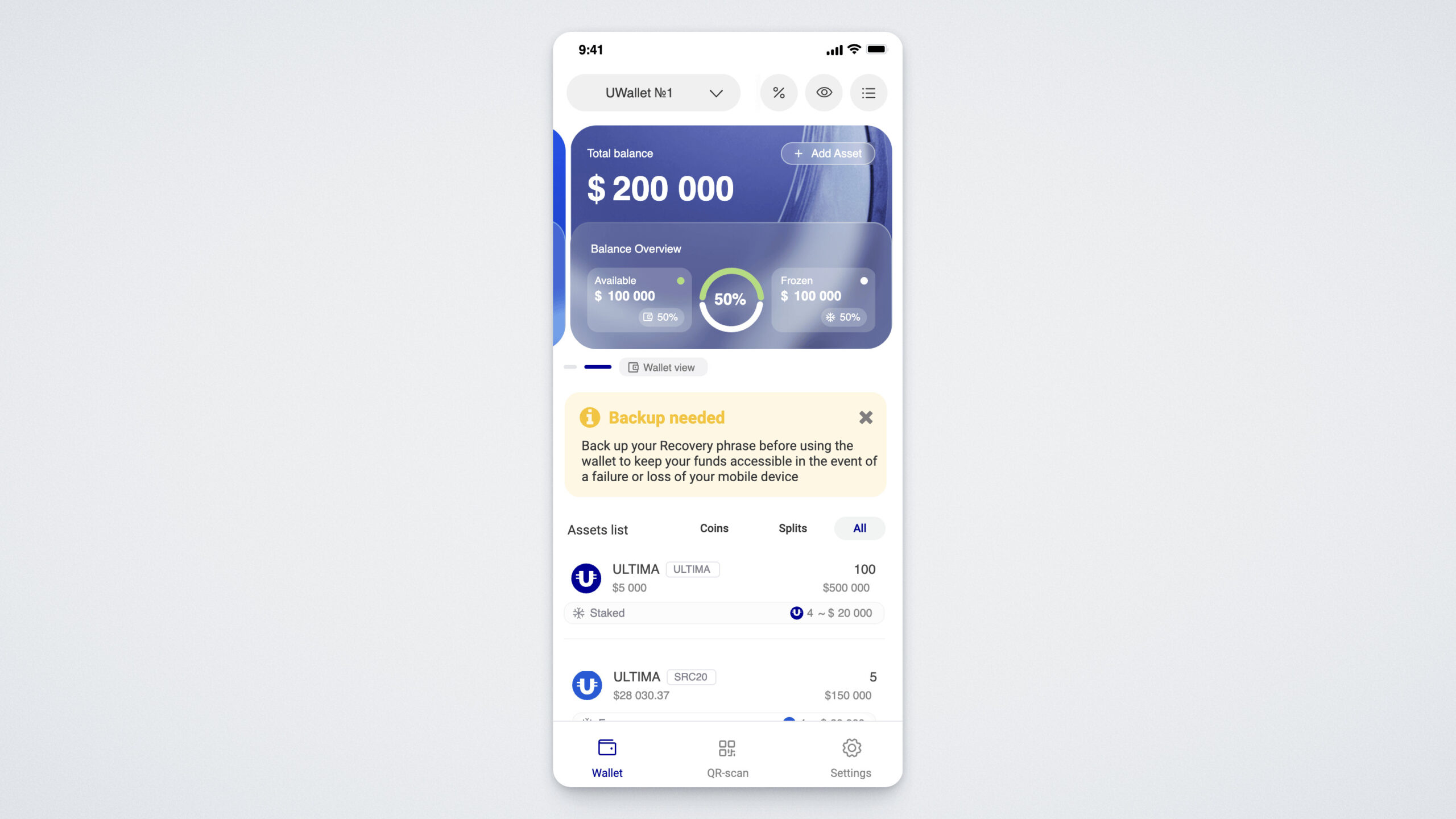
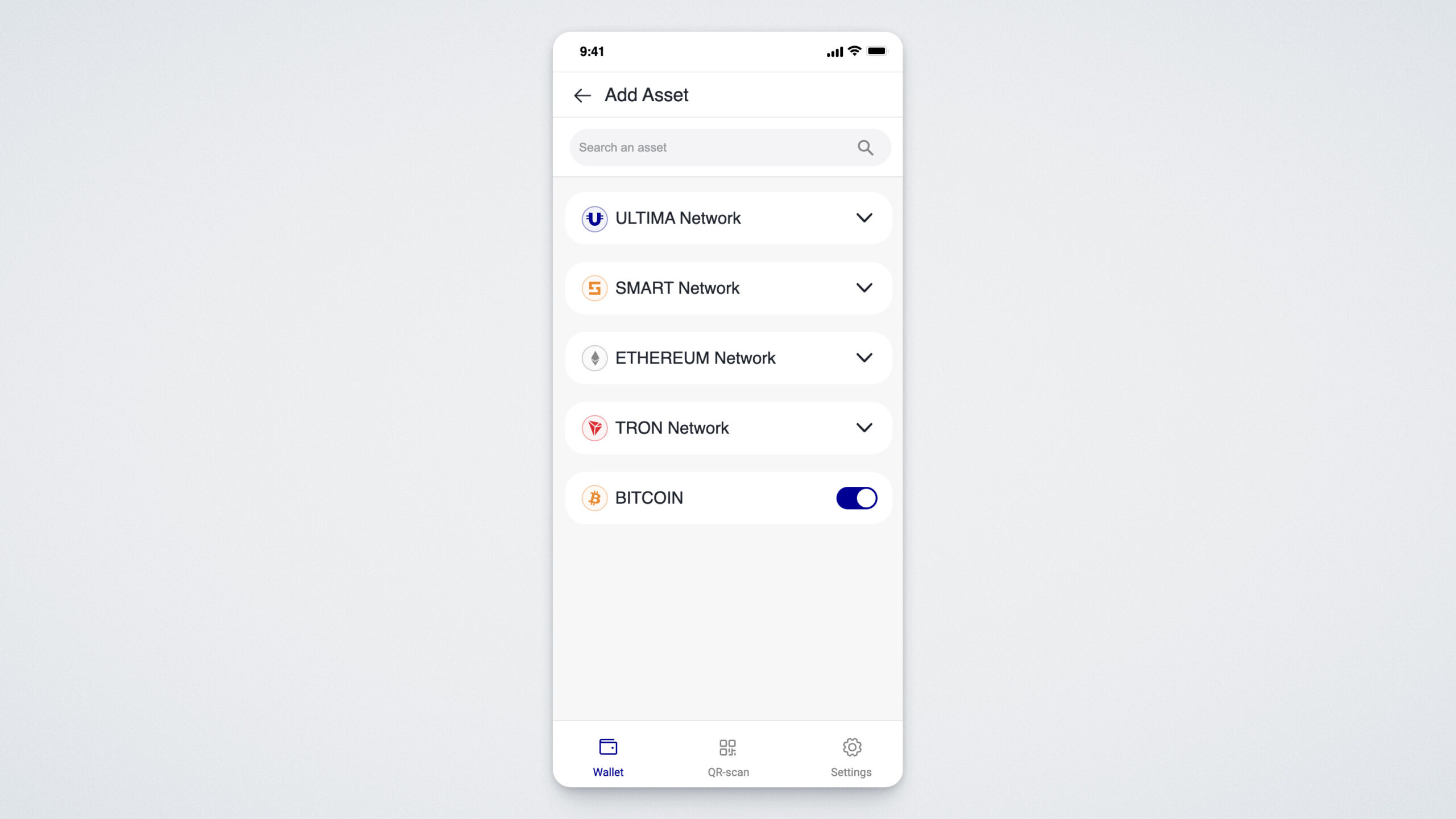
To add a new cryptocurrency to your existing wallet, tap “Add Asset” on the main widget. A window will open showing the list of currently supported cryptocurrencies, organized by blockchain network type*.
To receive or send cryptocurrency, tap the card of the desired asset from your available list.
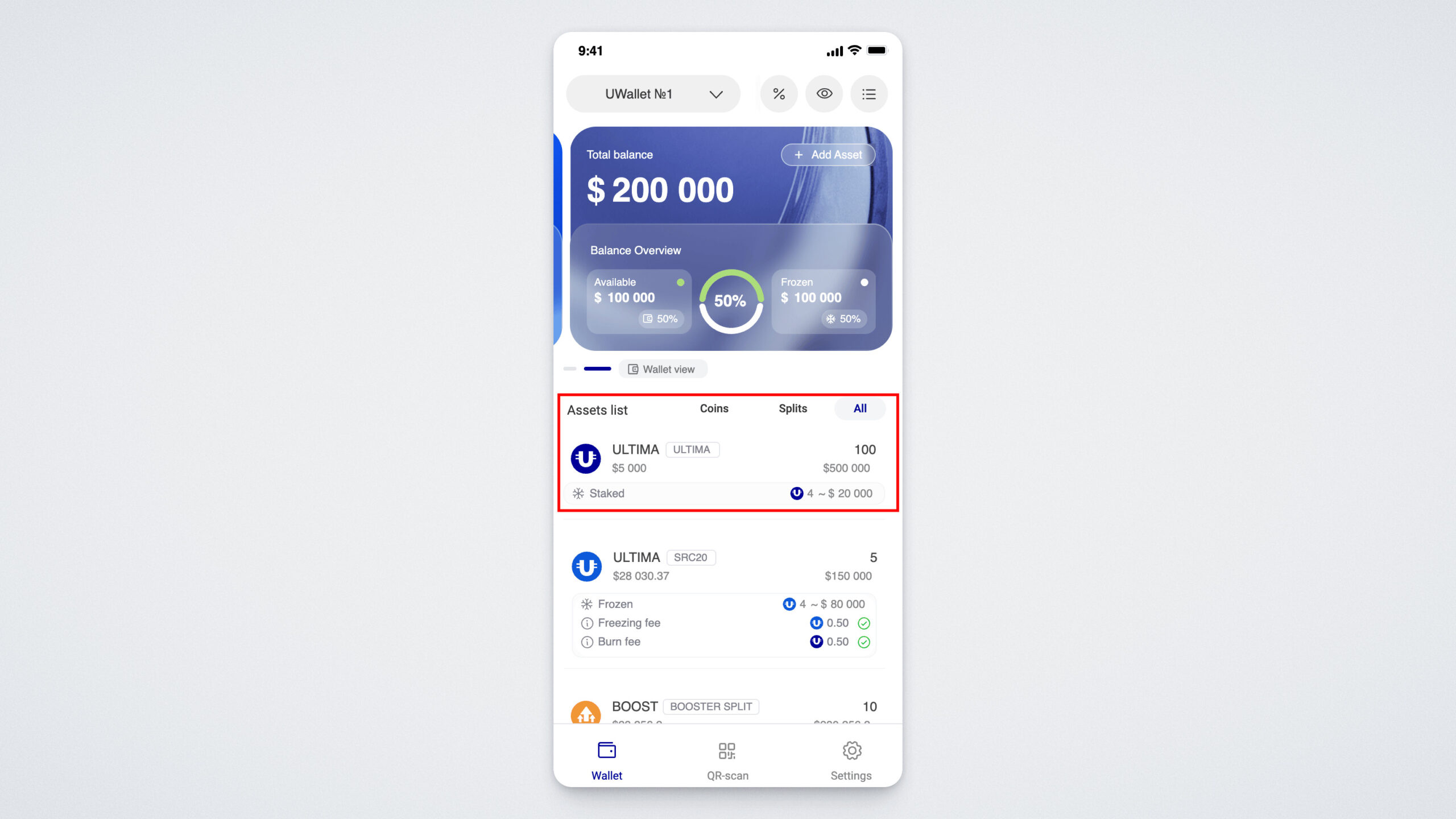
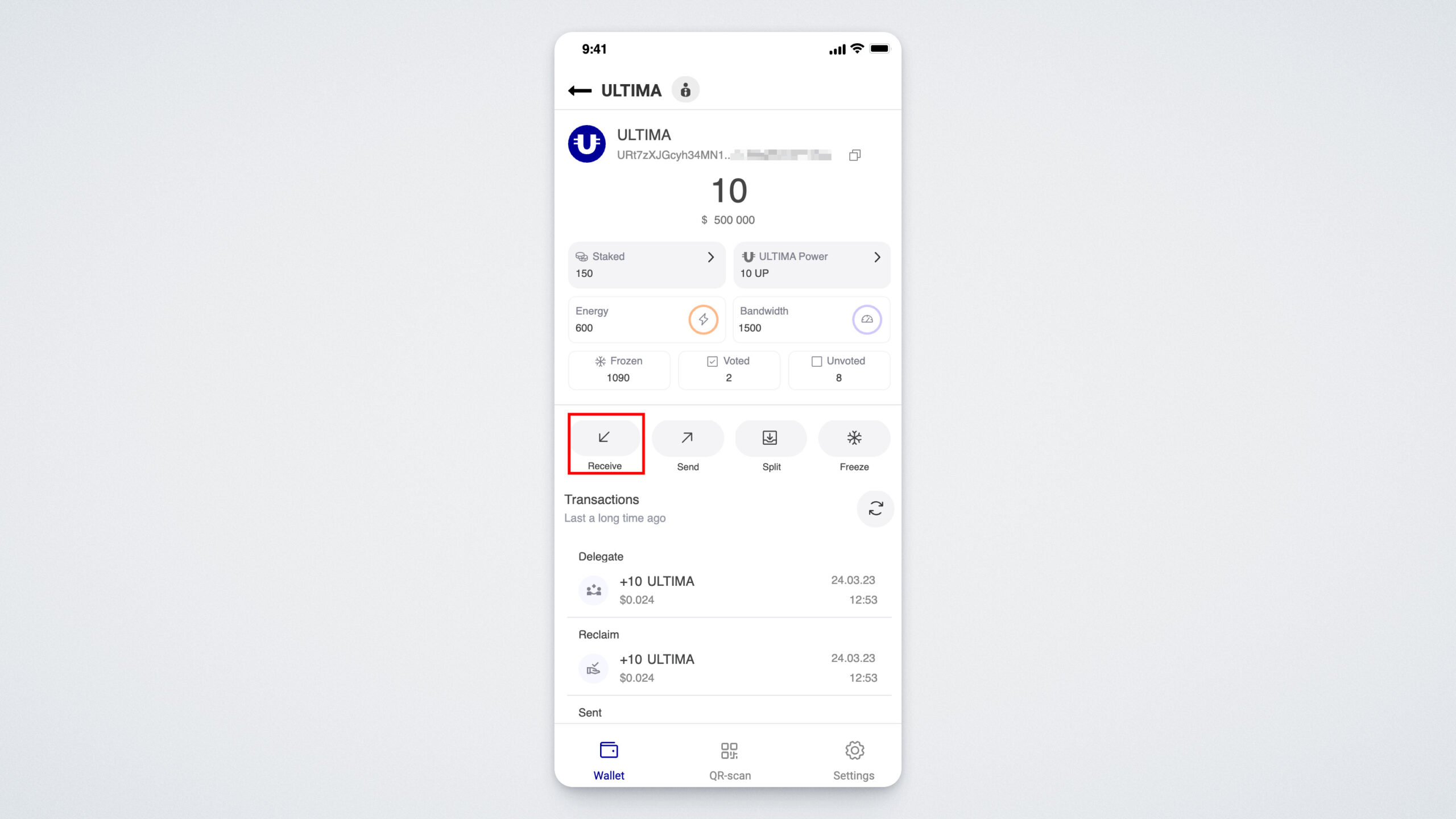
If you want to receive cryptocurrency to your wallet, tap the “Receive” button.
A QR code will appear — you can take a screenshot or share it with the sender. You’ll also see your wallet address, which can be copied by tapping the copy icon:
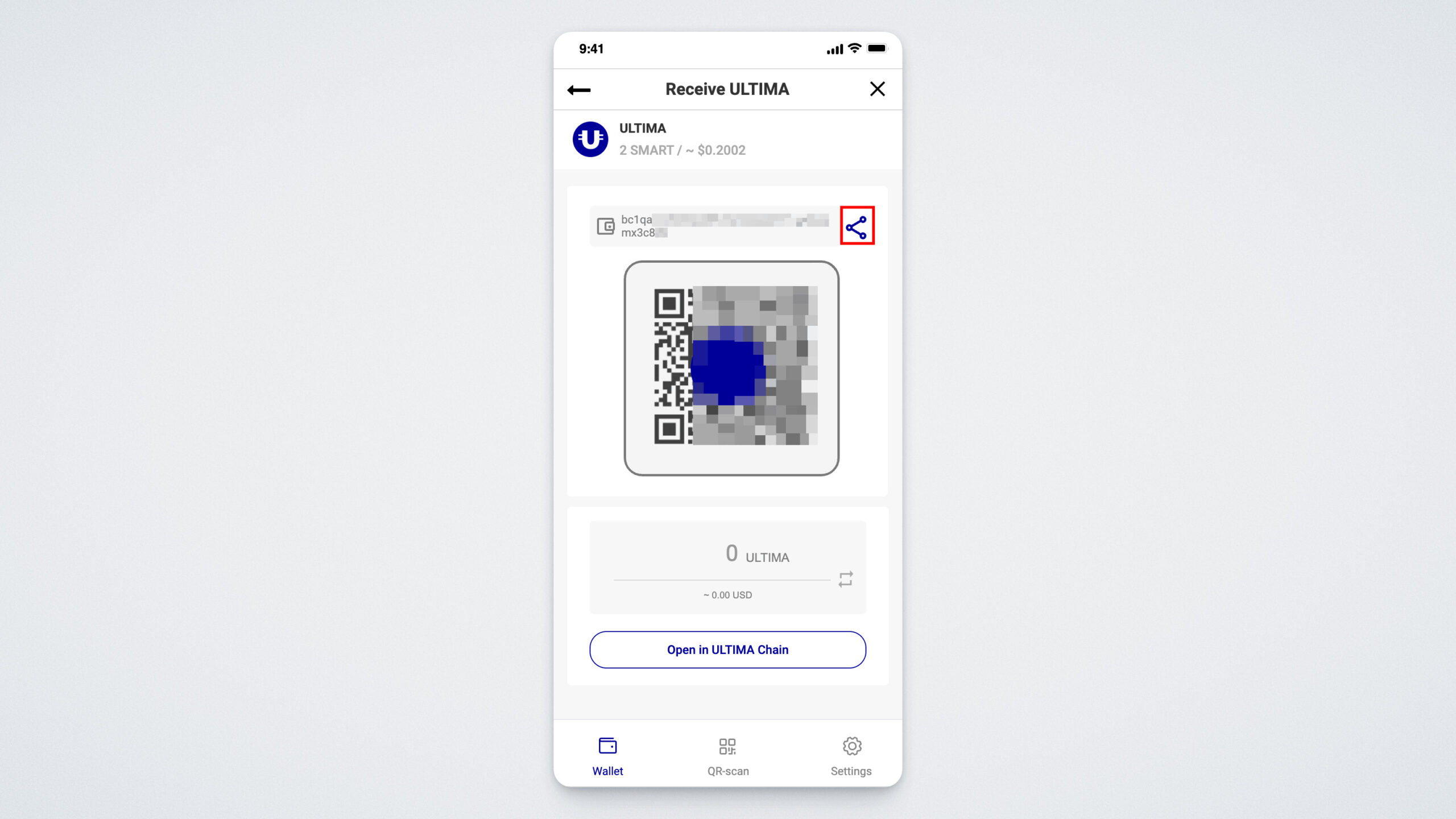
To send cryptocurrency, tap “Send.” In the window that opens, enter the amount and the recipient’s address. You can also send crypto by scanning a QR code.
You can assign a unique name to your wallet and rename it at any time. The display order of your wallets can also be adjusted. You can find more details on how to add a new wallet in the “Settings” section. The guide for creating your first wallet is available via this link.
QR Code
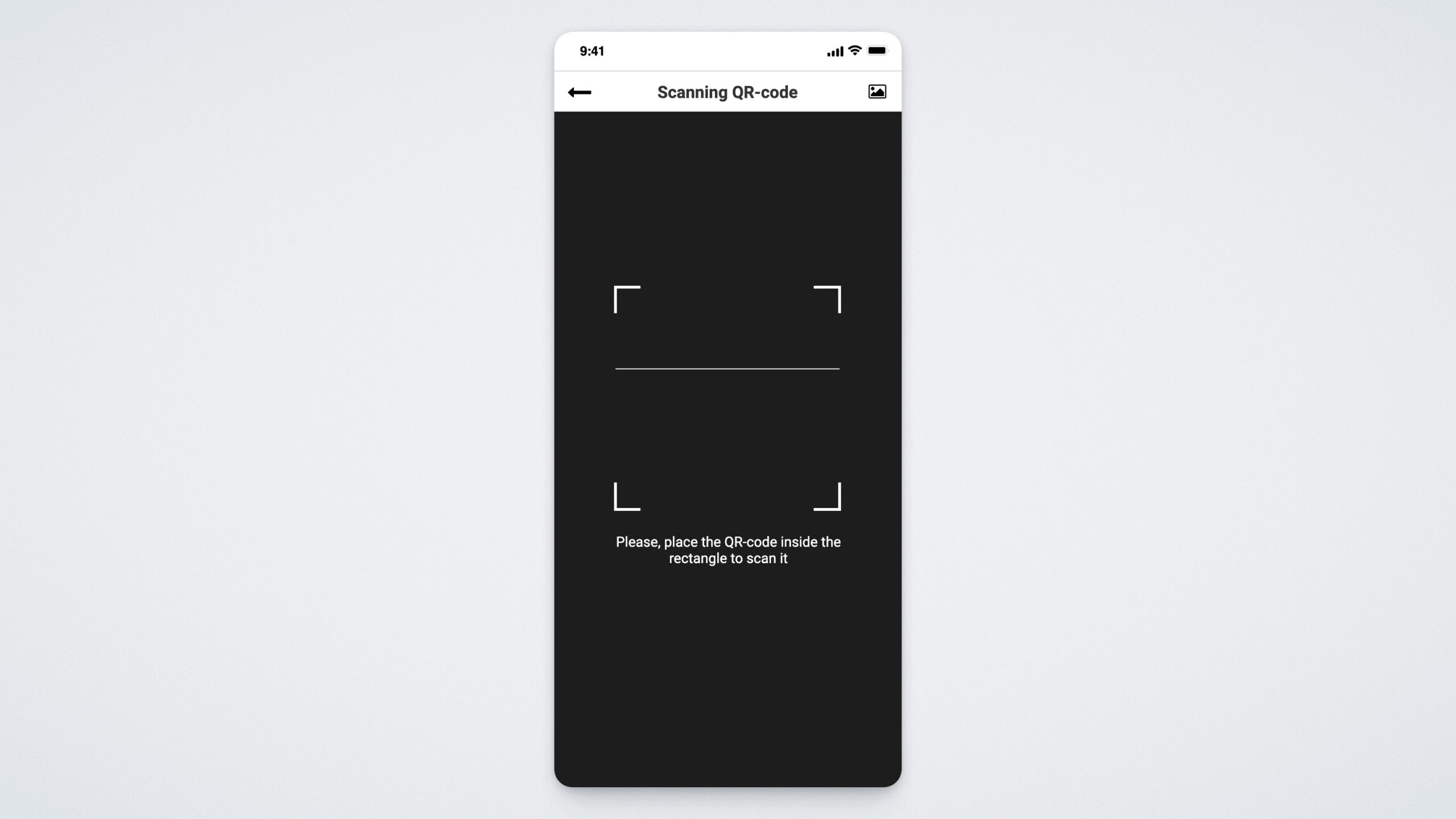
The second tab in the menu is the QR Code. Using it, you can conveniently and quickly send transactions by simply scanning a QR code with your camera:
Settings
The final section of the UWallet app is Settings.
The most important part of this section is “My Wallets” — this is where you can add new wallets.
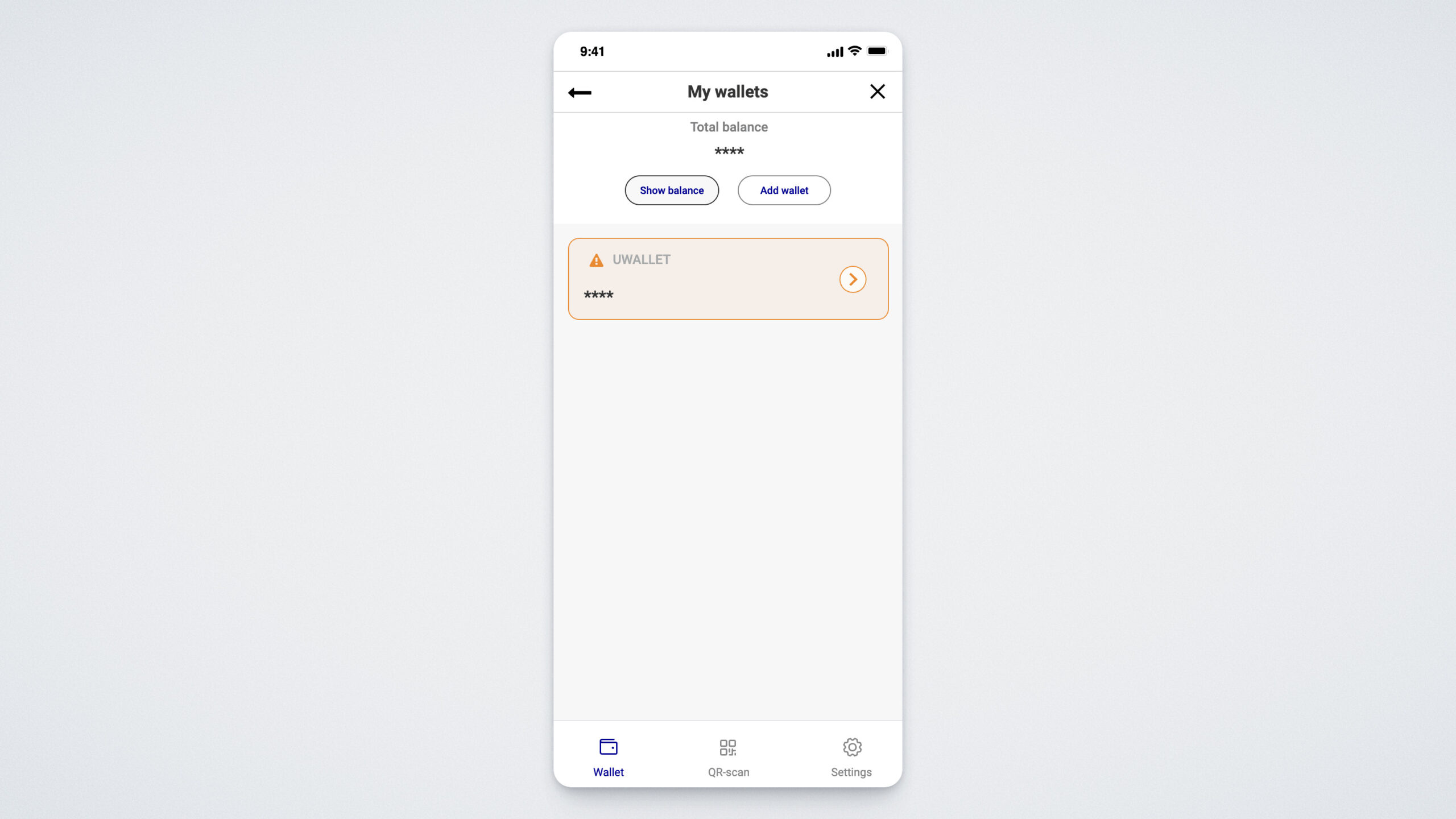
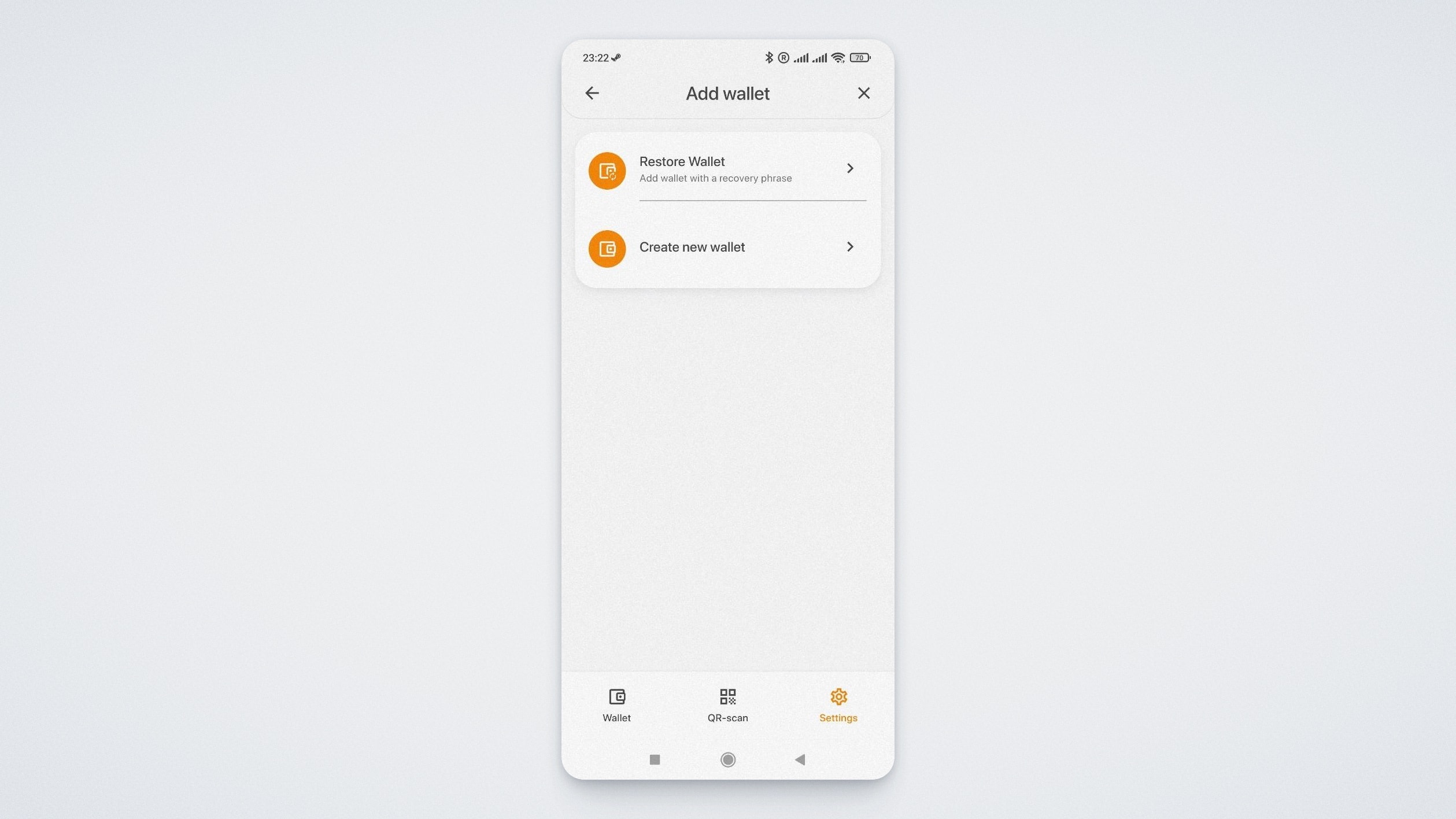
To add a new wallet, tap “+ADD WALLET.” A window will open where you can either import an existing wallet by tapping “Restore Wallet”, or create a new one by selecting “Create New Wallet.”
In the “SECURITY” section, you can set or disable a PIN code:
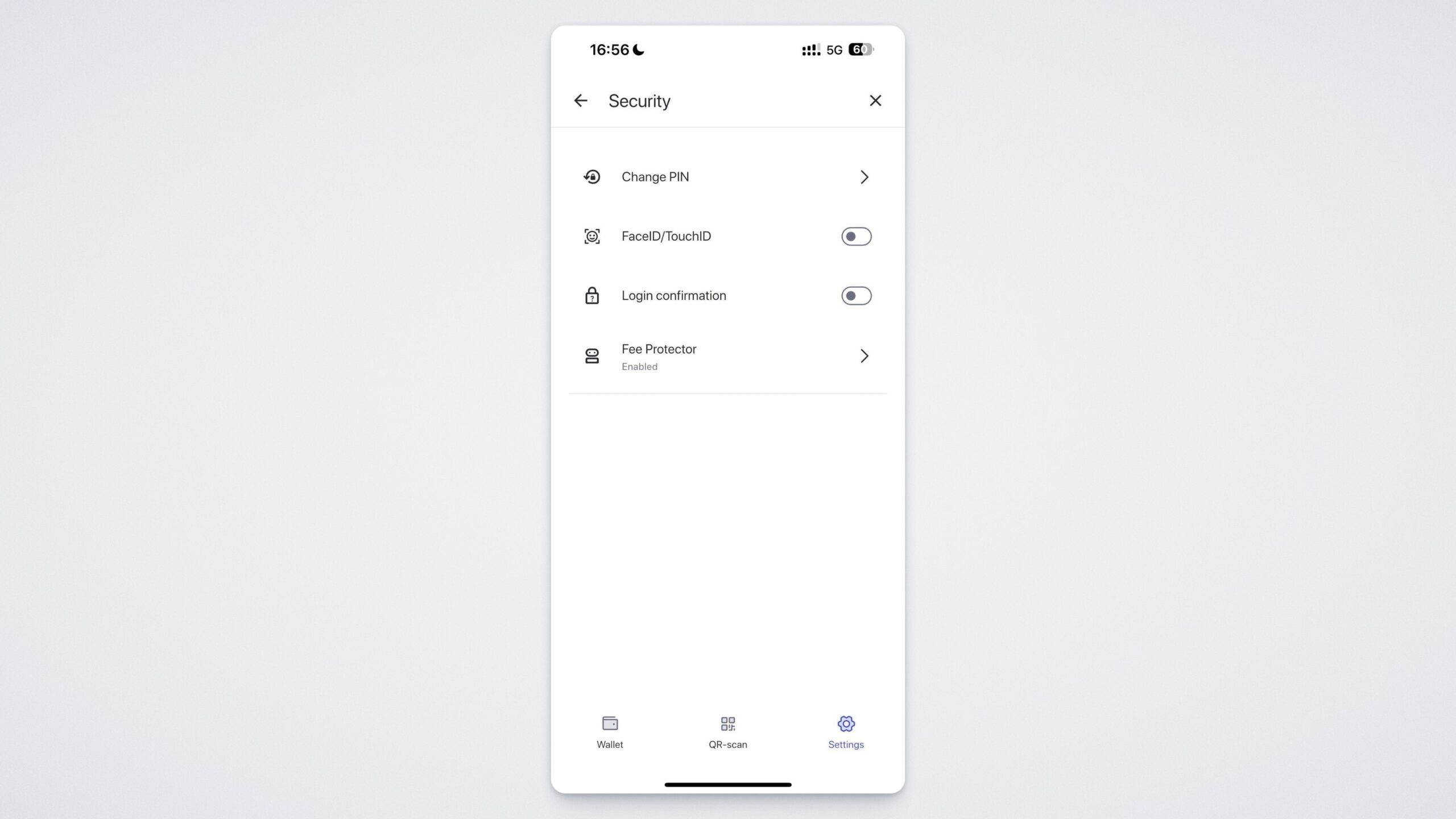
By enabling Face ID / Touch ID, you can use facial recognition or fingerprint scanning for additional security.
Tapping “Login Confirmation” activates a mode that requires entering your password each time you log in.
You can also enable Fee Protector, a feature that protects you from overpaying network fees.
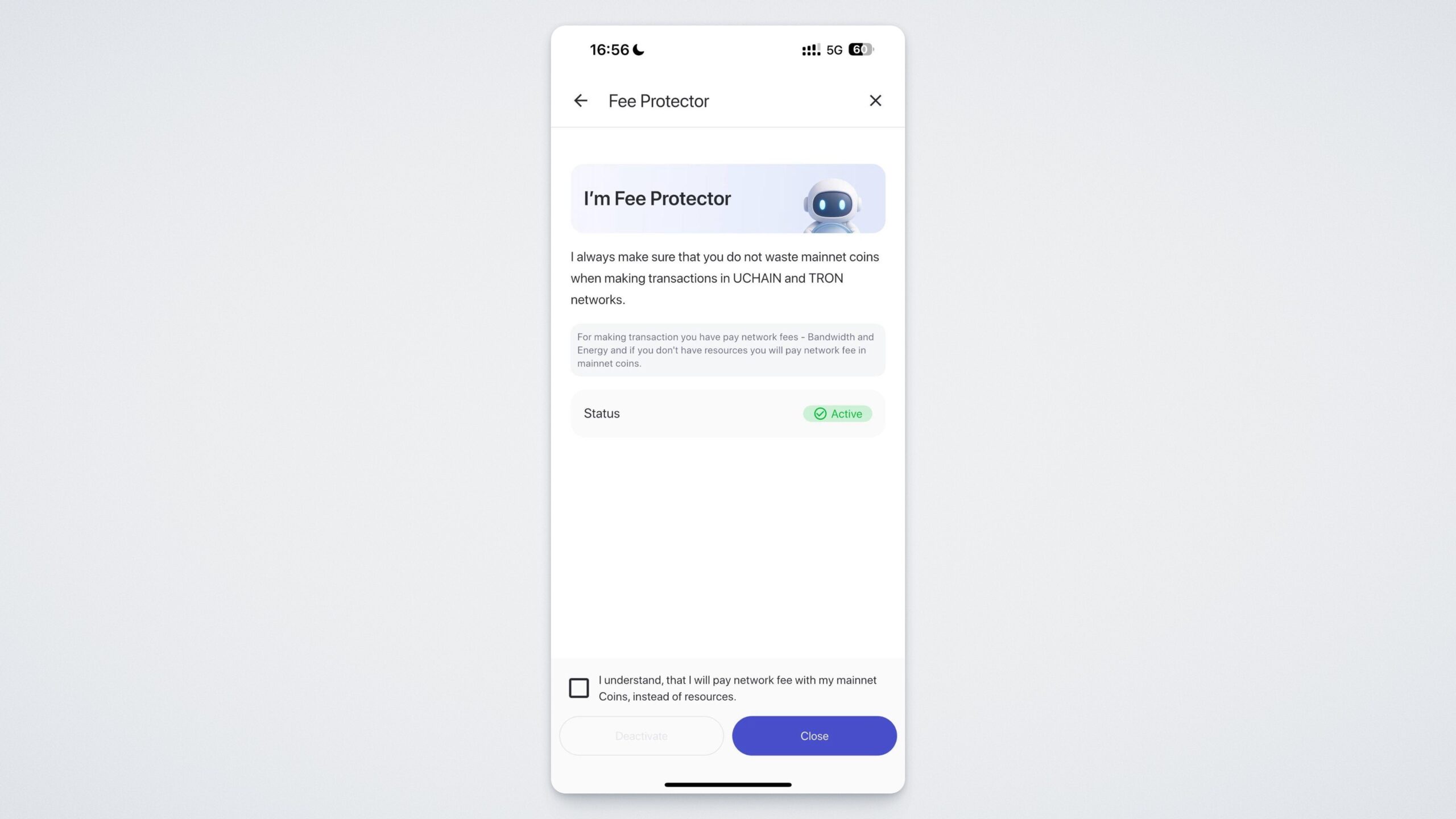
We’ve reviewed the “Security” section, and now return to the Settings menu.
In the “Dark Mode" section, you can switch between light and dark themes. By enabling “Hide My Address,” you can disable the display of your wallet address.
In the “Language” section, you can switch the app’s language at any time.
Start exploring UWallet right now — download it from the App Store, Google Play, or visit the official website: https://uwallet.com/en